Publishing OWS data sources
Spatial Cloud OWS Configuration
The Spatial Cloud environment includes the ability to publish any Data Entry layers as a WFS source for the purpose of retrieving updated records on premise. Any use for other purposes may result in the suspension or removal of this service.
Customers that purchase the required WFS/WMS Server license can also publish WFS/WMS data sources for general consumption by a WFS or WMS client application. This includes configuring as WFS sources in Cia Spatial Configuration.
Note: these data sources are unsecured. The service provided is for open or non sensitive data provision only.
Configuring a Map for OWS data source
The map configuration for OWS services is possible via the MapManager user interface. To set up a map to be used as an OWS data source ensure the map is open in MapManager and:
- Configure a meaningful Map Name
- Map names MUST be a mix of alphanumeric characters and underscores only. For example: Property_Sync
- Right click on the top level MAP element in layer tree and select Set WMS/WFS Parameters
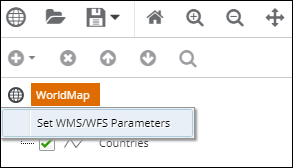
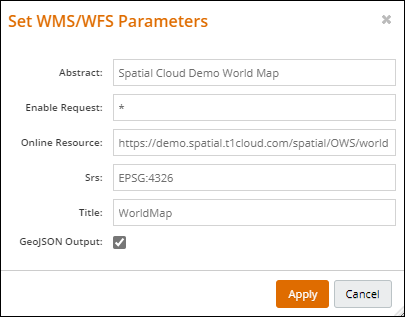
Provide the following configuration:
- Abstract - A brief description of the data source(s) provided in the map. Abstract is returned as part of a GetCapabilities response.
- Enable Request - use * by default to allow all request types. A space separated list of the OWS request types such as GetCapabilities GetMap etc.
HINT: To configure MAP for WMS only and not allow WFS requests use the following list: GetCapabilities GetMap GetStyles GetFeatureInfo GetLegendGraphic
- Online Resource – the full URL to your OWS endpoint. This takes the form of the URL to the service, plus your map name.
For example in the if your map is saved and published as PRSync the Online Resource would be:
https://<customercode>.spatial.t1cloud.com/spatial/OWS/<customercode>/<mapname>
For example a site named DEMO with a published map named PROPERTY would use:
https://demo.spatial.t1cloud.com/spatial/OWS/demo/PROPERTY?
Note: The online resource URL is used by WFS\WMS clients to derive a valid GetFeature or GetMap request. If incorrect then an OWS client can return a GetCapabilities successfully but will throw errors requesting a map or features.
- SRS - A space separated list of the SRS supported by the data source. Values must be of the form 'EPSG:12345'.
For example EPSG:28350 EPSG:4326 EPSG:4286
- Title - a title for the data source
Configuring layer OWS parameters
Each layer in a Map configured for OWS MUST be named with Alphanumeric characters and underscores only. Space in layer names are not supported.
Each layer also requires further configuration for consumption by WFS\WFS clients. In MapManager:
- Select the LAYER element in the layer tree and click the Edit button
- Right click on the LAYER element in the layer tree and select Set WMS/WFS Parameters
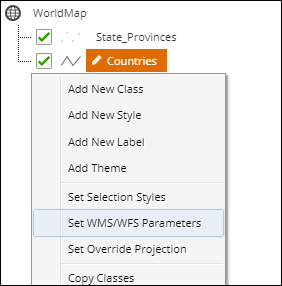
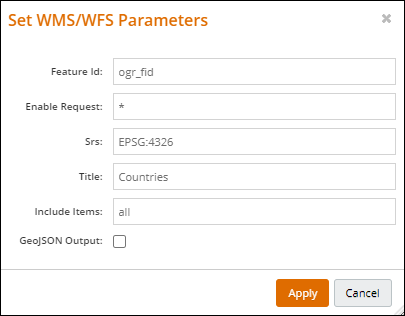
- Provide the following configuration:
- Feature ID - a field for the layer that will act as a unique identifier for the OWS layer data
- Enable Request - use * by default to allow all request types. Same function as MAP level setting above
- SRS - available SRS for the layer. Same as the MAP level setting above
- Title - a title for the layer
- Include Items- use 'all' by default. This will return all fields for the layer in a request.
Alternatively include only certain attribute fields from the source layer by providing a comma separated list of field names. For example 'FID,PropNo,Address'
Publishing an OWS map
All Spatial Cloud OWS data sources are served from maps that have been published to OWS. Once the above settings have been made:
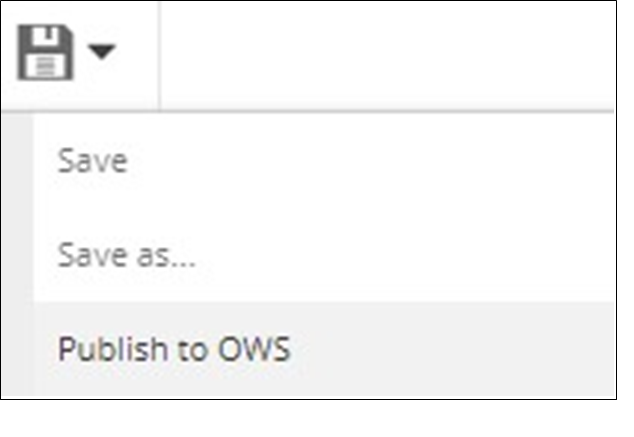
- Deploy the map by clicking on the Save icon and selecting Publish to OWS
.
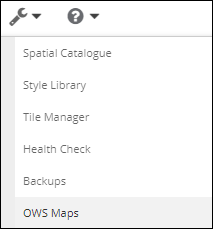
You can view or delete published maps in MapManager by clicking the Spanner (Tools) button and selecting OWS Maps
Testing your OWS data source
Once all of the above configuration is in place the OWS source can be tested in a browser or WMS\WFS client application. If testing in a browser enter the following parameters:
- URL. This will be in the form:
- https://{customercode}.spatial.t1cloud.com/spatial/OWS/{customercode}/{mapname}
Note: The URL is case sensitive so be sure to use the casing above - Query string parameters:
- Service=WMS or Service=WFS
- Request=GetCapabilities
For a WFS service on a site named ‘Demo’ and a map named World this URL would be:
- https://demo.spatial.t1cloud.com/spatial/OWS/demo/WorldMap?Service=WFS&Request=GetCapabilities
This will return a GetCapabilities XML response describing the service. The site value will be provided for your records when the service is initially setup.
Some other OWS tips to keep in mind:
- Only configure and use the base URL in Ci or other WMS\WFS clients (QGIS etc). The relevant query string parameters such as REQUEST= should never be required and will be added by a standards compliant client WMS\WFS client application.
- Ensure the Online Resource URL (which matches the base URL mentioned above) returned in the GetCapabilities response is correct. The is used as the base URL for other OWS request types such as GetMap and GetFeature