Folder Structure
Overview
This document outlines the folder structure accessible via SFTP in the Spatial Cloud.
We have adopted use of SFTP as the file transfer protocol of choice following feedback from our customer base requesting its implementation.
Note there are some synchronisation and data transfer implications now in place due to the SFTP service available in our SaaS environments.
Structure
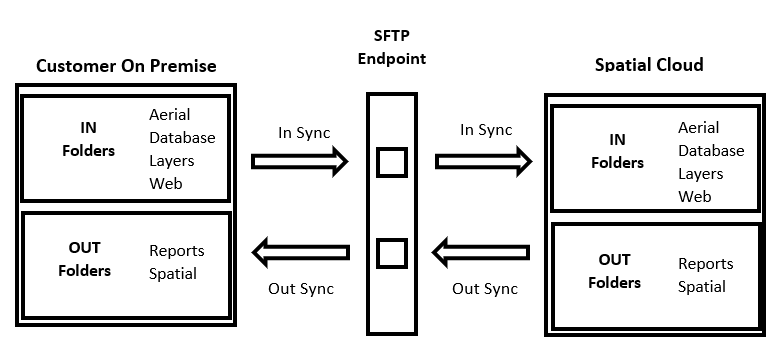
Transfer into and out of a customer’s Spatial Cloud environment is accomplished using a root IN and an OUT folder
File transfer IN
The ‘IN’ root folder structure is used for all file upload from customer environments into the Spatial Cloud and consists of 4 sub folders – Aerial, Database, Layers and Web. Only folders and files created under these four top level folders will be synchronised into your spatial cloud environment. Each folder is provided to house all forms of data customers may expect to configure and consume in IntraMaps and associated applications.
Use of each folder is loosely recommended as follows:
- Aerial – this folder is provided for upload of all aerial imagery, and potentially other raster data.
- Database – this is provided for upload of your on premise spatial cloud data warehouse database backup. Your IntraMapsSpatialCloud.bak file must be uploaded here.
- Layers – provided for upload of ad hoc or static spatial data that is not included in the snapshot SHP extracts from your data warehouse. SHP files uploaded MUST have an accompanying spatial index file (E.g. QIX file). Data used for selection layers is only supported if accompanied by an attribute index on the mapkey field.
- Web – provided for upload of files for two separate use cases:
- Print - upload print and report DOCX templates to include in IntraMaps configuration
- Web Documents\Images - create sub folders to upload icons, legend images, documents and other files to be served via web links in IntraMaps configuration
File transfer OUT
The ‘OUT’ root folder structure is used for all data coming out of the Spatial Cloud environment for customers to access and consists of 2 sub folders – Reports and Spatial. Only folders and files created as part of our spatial cloud data processes will appear in these folders. Any customer uploading data via SFTP to the OUT folder will never be able to see the associated files in their IntraMaps environment or admin tools.
The two folders are provided for the following purpose:
- Reports – this folder is populated with csv reports for customer use:
- CatalogueExtract – a subset of fields from the SpatialCatalogue for reporting purposes. It also contains CatalogueID values for any customers with configured metadata, as this is the only method supported in the Spatial Cloud for metadata queries.
- CatalogueMatch – provides a list of the most common GIS format files (SHP, TAB, ECW, TIF) that exist under the /IN and /OUT SFTP folders that do NOT exist in the SpatialCatalogue. This can be used to assist in identifying obsolete or redundant files to be removed via support case.
Note: As unreferenced files may be indirectly referenced in the catalogue via a VRT or Tile Index layer this report is provided as an indicative reference only and any action should be researched and cross checked by each customer to avoid accidental removal of required data. - DatabaseReport – includes a list of tables, field names and data types in your database. Provided for reporting purposes and also as a reference for any SQL queries to be built in ConfigManager.
- DatabaseRowCount – provides a row count report of all tables in your Spatial Cloud database. This can be used to help determine any discrepancy in data updates and a support case to investigate issues can be raised accordingly
- Spatial – all SHP files generated out of customer database layers are created here. This include both the standard Ci\CiA layers created under the \SpatialCatalogue sub folder, as well as all folders and SHP files generated from your OGR_Metadata table.
File Synchronisation
Files are 'synchronised' between the SFTP folders and the Spatial Cloud environment every 5 minutes both IN and OUT. If there is a significant number of files or even a significantly large file, the copy will run until completed and then continue to run every 5 minutes.
A basic outline of the data transfer process can be described as follows: