Asset Attributes Classification Table Generation
Summary
Asset attribute tables are now built based on the asset classifications derived from Ci\CiA asset data. The issue is no longer having to put together a query to build another query on the fly and execute it, but to determine which new Asset Attribute table that should be used for a given Selection Layer.
The benefit is the Asset Info Pane queries should execute much faster as the data is pre-processed and is amenable to access using simple queries.
Generated Asset Attribute tables
These are created anew with each data extraction from the client asset database into the IntraMaps database. The process executes an equivalent query to the ‘on the fly’ query previously used as part of the IntraMaps configuration. The number of ‘flat’ tables generated and their names will depend on the content of the client asset data set.
An example list of objects created
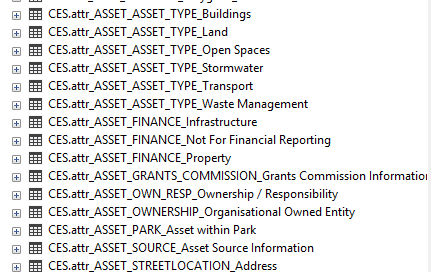
Asset Attribute Table Names
The names of the derived Asset Attribute tables will have a structure similar to ‘attr_ASSET_OWNERSHIP_Organisational Owned Entity’ There will be one table for each top level asset type. The table name is constructed from the prefix ‘attr_’+Asset Register Name+Attribute Code+the Level1 Description.
Asset Attribute Table Contents
The new Asset Attribute tables will generally contain all the columns returned by the earlier ‘on the fly’ queries and often more. One of the included columns is the mapkey so the queries can now be as simple as
Select * from attr_ASSET_ASSET_TYPE_Transport where mapkey = ‘@mapkey’
The ‘Asset Classification’ column is not included but it can be added back in the Info pane query by including it as a literal value field if it is needed.
Which Asset Attribute Table to Use?
In most cases you can infer from the nature of the Selection Layer which of the Asset Attribute tables should be used in an IntraMaps Info Panel query. As a further test you can just try a simple ‘Select *’ query against the table you think most likely and pass the @mapkey as in the example above.
How do I know which Asset Attribute Tables I have?
Check your \Data\OUT\Reports folder using your FTP client. There should be two files where the first part of the name is your site code and the second part is ‘DatabaseReport.csv’ and ‘DatabaseRowCount.csv’ respectively.
The DatabaseReport.csv file lists all the tables in your database and their column names. The DatabaseRowCount.csv file lists all the tables with their row count and is intended to be used after an upload is processed to make sure your uploaded data has been processed as expected.
If you look at the DatabaseReport.csv you can see the Asset Attribute tables under the CES schema with a name structure like ‘attr_ASSET_ASSET TYPE_Artwork’ or ‘attr_ASSET_ASSET TYPE_Bore’.
Targeted Query Example
SELECT 'Transport\Pavement Areas\Road Segment' AS [Asset Classification], [From Street], [NAASRA Class],[Road Name],[Road Number],[Road Type],
[Road Use],[Road_CH End],[Road_CH Start],[Roads Hierarchy],[Segment Length m],[Segment Number],[Segment_CH End],[Segment_CH Start],[To Street]
FROM CES.attr_ASSET_ASSET_TYPE_Transport
WHERE mapkey = '@mapkey'
Configuring the Asset Attribute Table query
- There should be a table in the ‘CES.attr_Asset’ set with the name suffix the same as the root path of the ‘Asset Classification’ value. For example, if the ‘Asset Classification’ value is ‘Transport\Pavement Areas\Road Segment’ then the table you are looking for is name something like ‘attr_ASSET_ASSET_TYPE_Transport’
- Create an Info Pane query like :- Select * from attr_ASSET_ASSET_TYPE_Transport where mapkey =’@mapkey’
- Test and refine the returned fields in the query as required, similar to the Asset Attribute replacement query example above.